

Reordering Certificates in DataPower Validation Credentials: A Step-by-Step Guide to Managing Certificate Order in ValCred Truststores
• • by
Chris Phillips


Draft!!
When working with IBM DataPower Gateway, you may need to reorder certificates within a Validation Credentials (ValCred) truststore. The order of certificates can be important for certificate chain validation and SSL/TLS handshake processing. This guide walks you through the process of reordering certificates in a DataPower valcred.
1. What is a Validation Credentials (ValCred)?
In DataPower, a Validation Credentials object (commonly referred to as “valcred”) is a type of truststore that contains trusted certificates used for validating SSL/TLS connections. The full name in the WebGUI is “Truststore (validation credentials)” and it’s found under Objects / Crypto configuration.
2. Why Reorder Certificates?
Certificate order in a truststore can affect:
- Certificate chain validation behavior
- SSL/TLS handshake performance
- Which certificate is presented first during validation
- Troubleshooting certificate-related issues
3. Prerequisites
Before you begin, ensure you have:
- Access to DataPower WebGUI with administrative privileges
- Access to the domain’s file manager
- A maintenance window (reordering requires a domain restart)
- Backup of your current configuration
4. Step-by-Step Process
4.1. View Current Certificate Order in WebGUI
- Log into the DataPower WebGUI
- Navigate to Objects / Crypto configuration
- Search for or select Truststore (validation credentials)
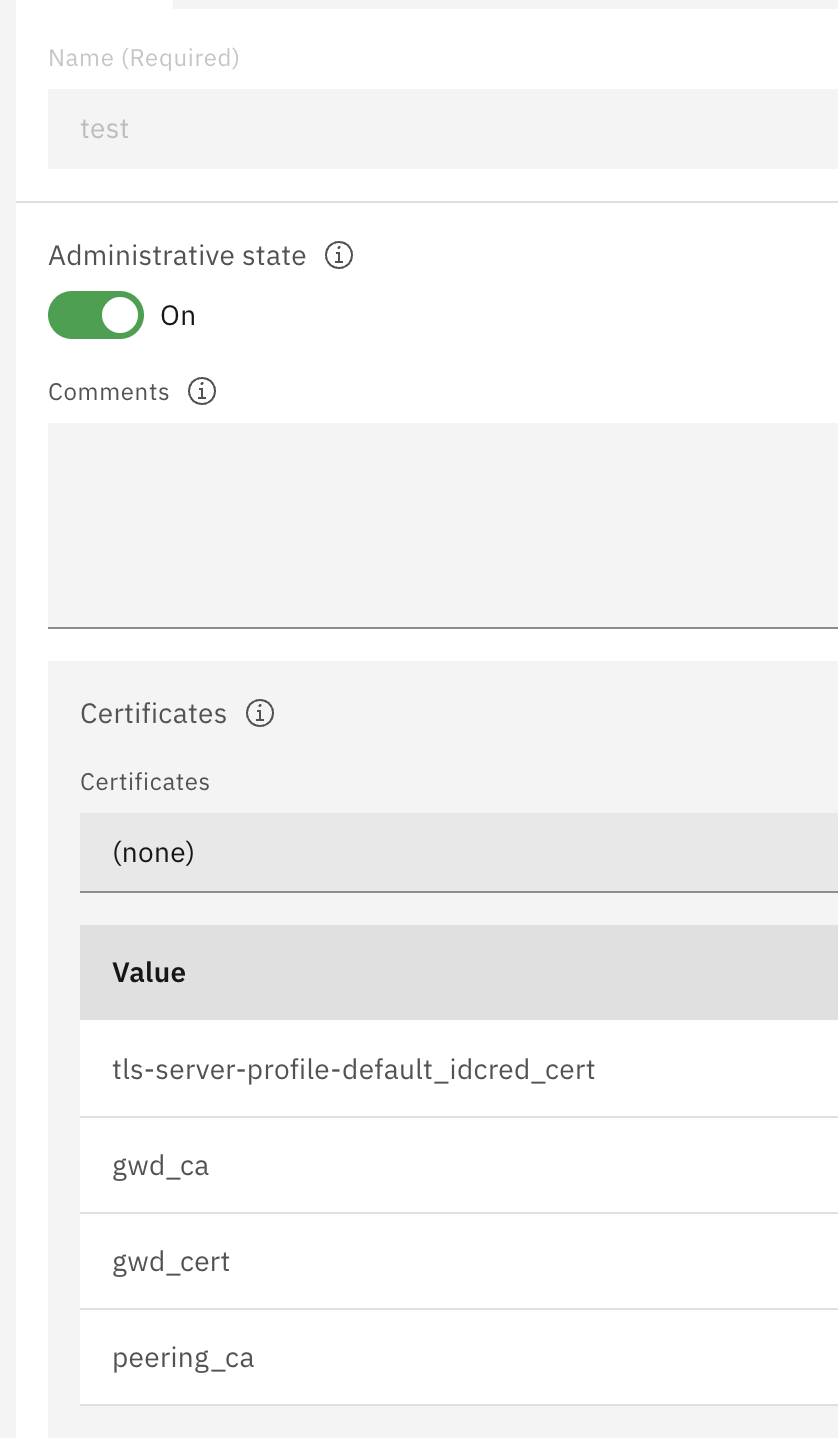 Figure 1: Searching for Truststore (validation credentials) in the WebGUI
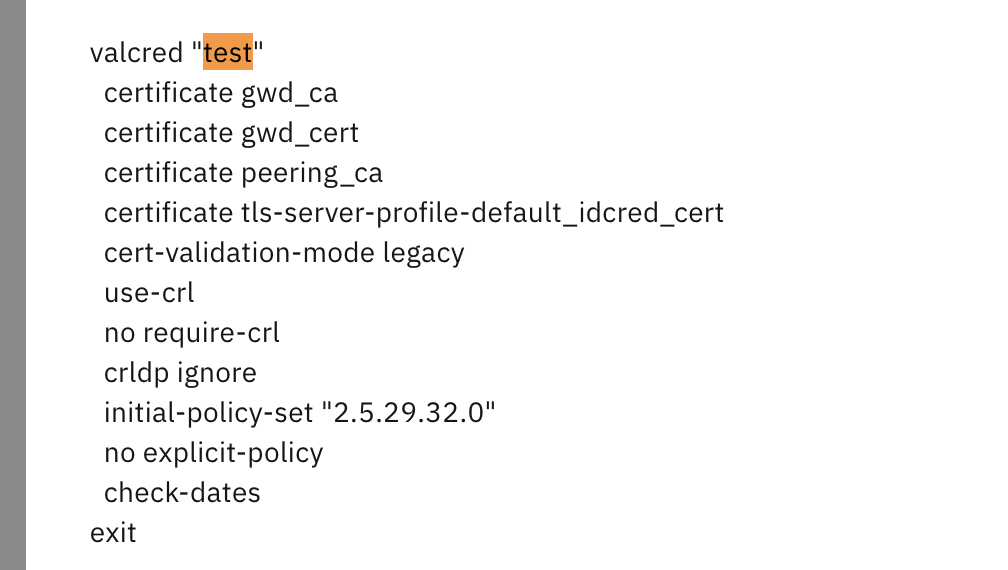 Figure 2: List of available truststore objects
- Click on your valcred object (e.g., “test”)
- In the Certificates section, note the current order of certificates
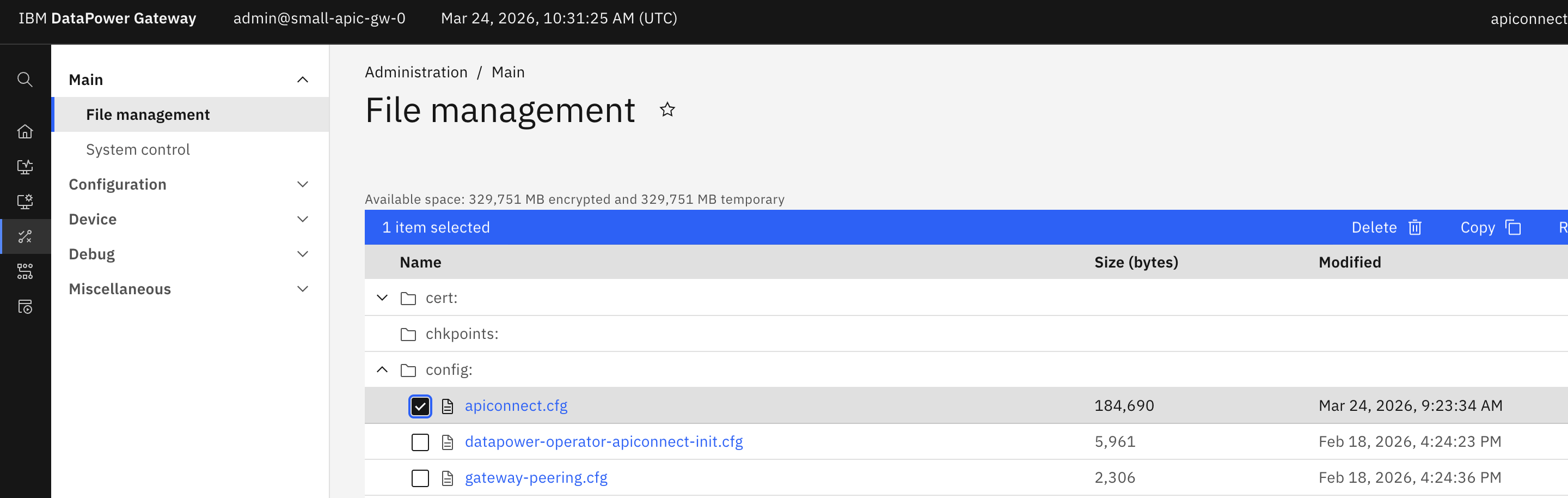 Figure 3: Current certificate order in the valcred WebGUI
Example current order:
gwd_ca
gwd_cert
peering_ca
tls-server-profile-default_idcred_cert
4.2. Locate and Edit the Configuration File
- In the DataPower WebGUI, navigate to Administration / Main
- Select File management from the left menu
- Browse to the config: directory
- Locate your domain’s configuration file (e.g.,
mydomain.cfg)
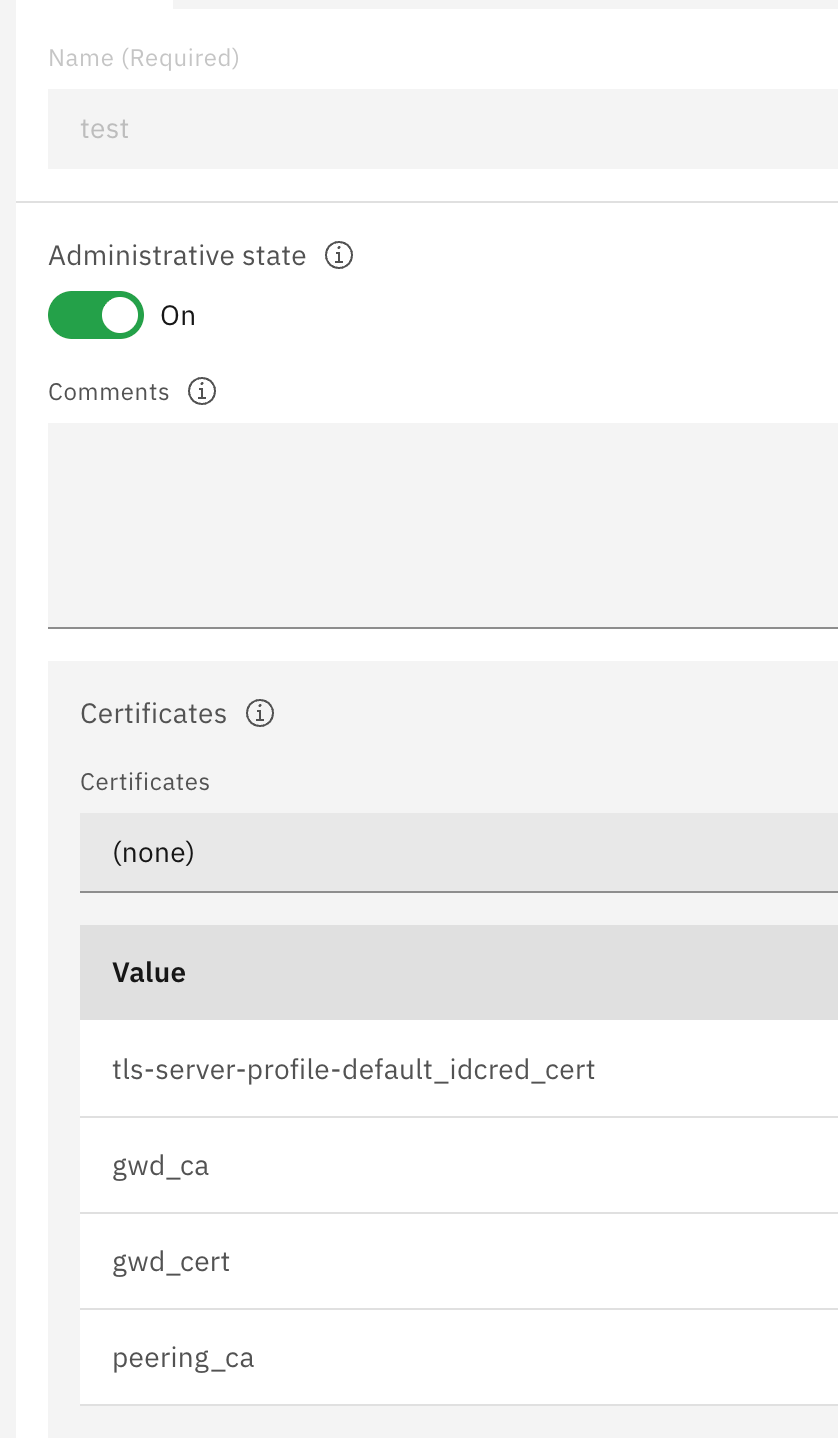 Figure 4: Navigating to the config directory in File Management
- Click on the configuration file to open it for editing
- Search for your valcred object name (e.g., search for
valcred "test")
You’ll find a configuration block similar to this:
valcred "test"
  certificate gwd_ca
  certificate gwd_cert
  certificate peering_ca
  certificate tls-server-profile-default_idcred_cert
  cert-validation-mode legacy
  use-crl
  no require-crl
  crldp ignore
  initial-policy-set "2.5.29.32.0"
  no explicit-policy
  check-dates
exit
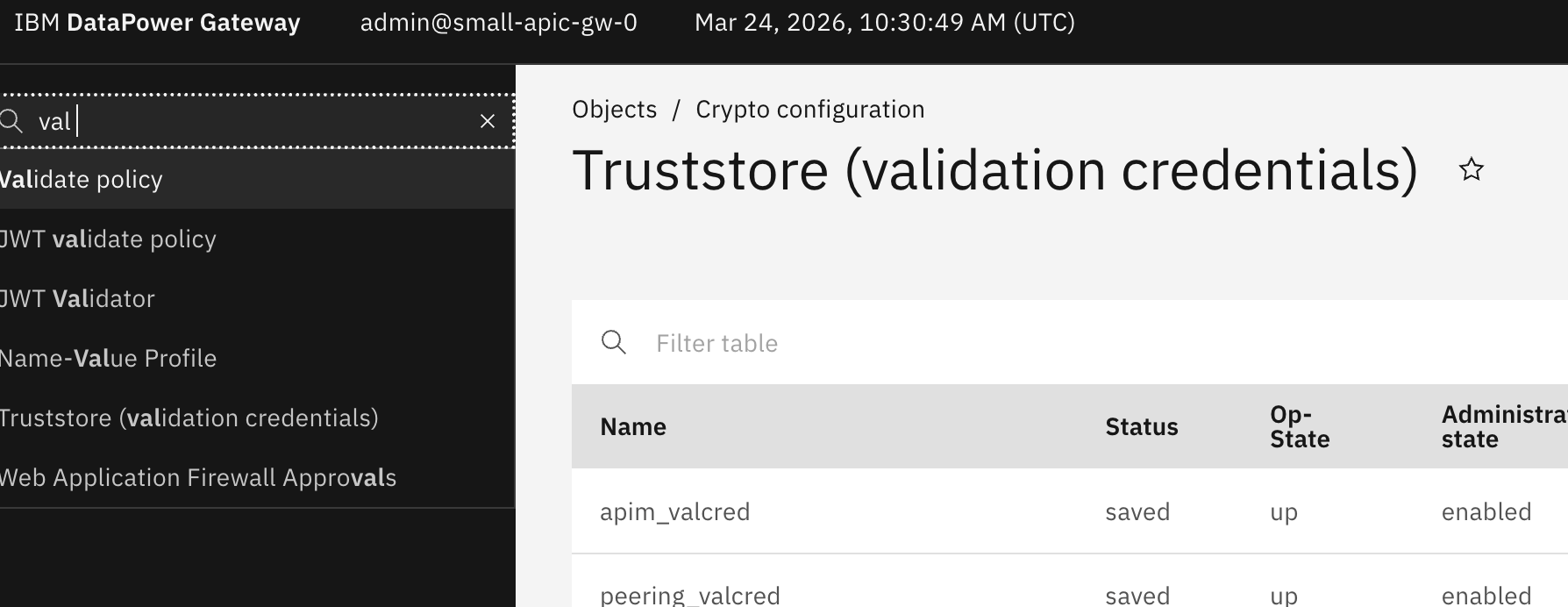 Figure 5: Original certificate order in the configuration file
4.3. Reorder the Certificates
- In the configuration file, reorder the
certificatelines to your desired sequence - For example, to move
tls-server-profile-default_idcred_certto the top:
New order:
valcred "test"
  certificate tls-server-profile-default_idcred_cert
  certificate gwd_ca
  certificate gwd_cert
  certificate peering_ca
  cert-validation-mode legacy
  use-crl
  no require-crl
  crldp ignore
  initial-policy-set "2.5.29.32.0"
  no explicit-policy
  check-dates
exit
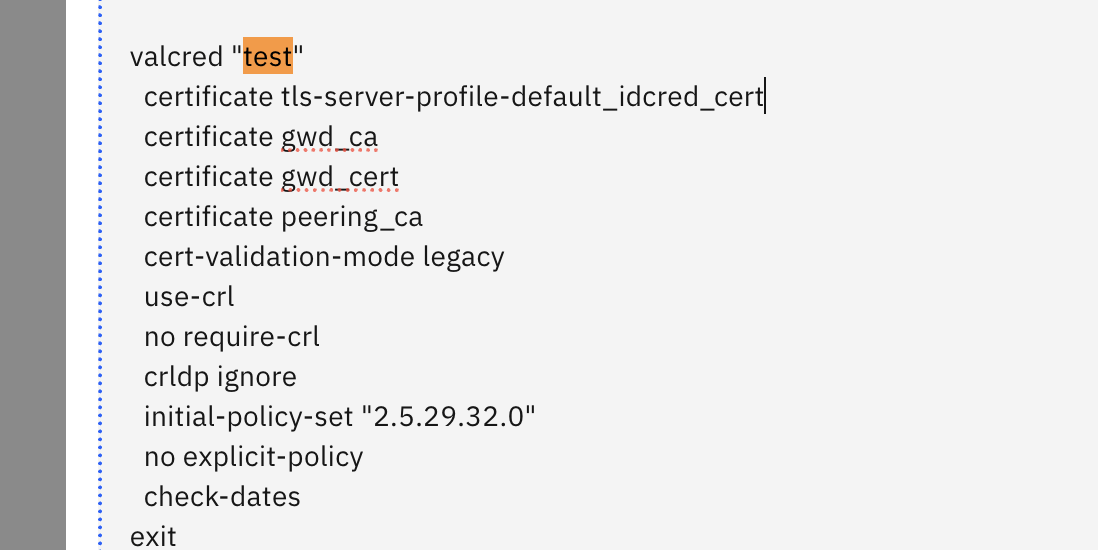 Figure 6: Reordered certificate configuration
- Save the configuration file
4.4. Restart the Domain
Important: Restarting the domain will cause a brief service interruption. Ensure this is performed during a maintenance window.
- In the DataPower WebGUI, navigate to the domain control panel
- Select your domain from the domain dropdown or domain status page
- Click the Restart action for the domain
- Wait for the domain to complete the restart process
- Verify the domain is back online and operational
4.5. Verify the New Certificate Order
- Return to Objects / Crypto configuration
- Navigate to Truststore (validation credentials)
- Open your valcred object
- Verify the certificates now appear in the new order
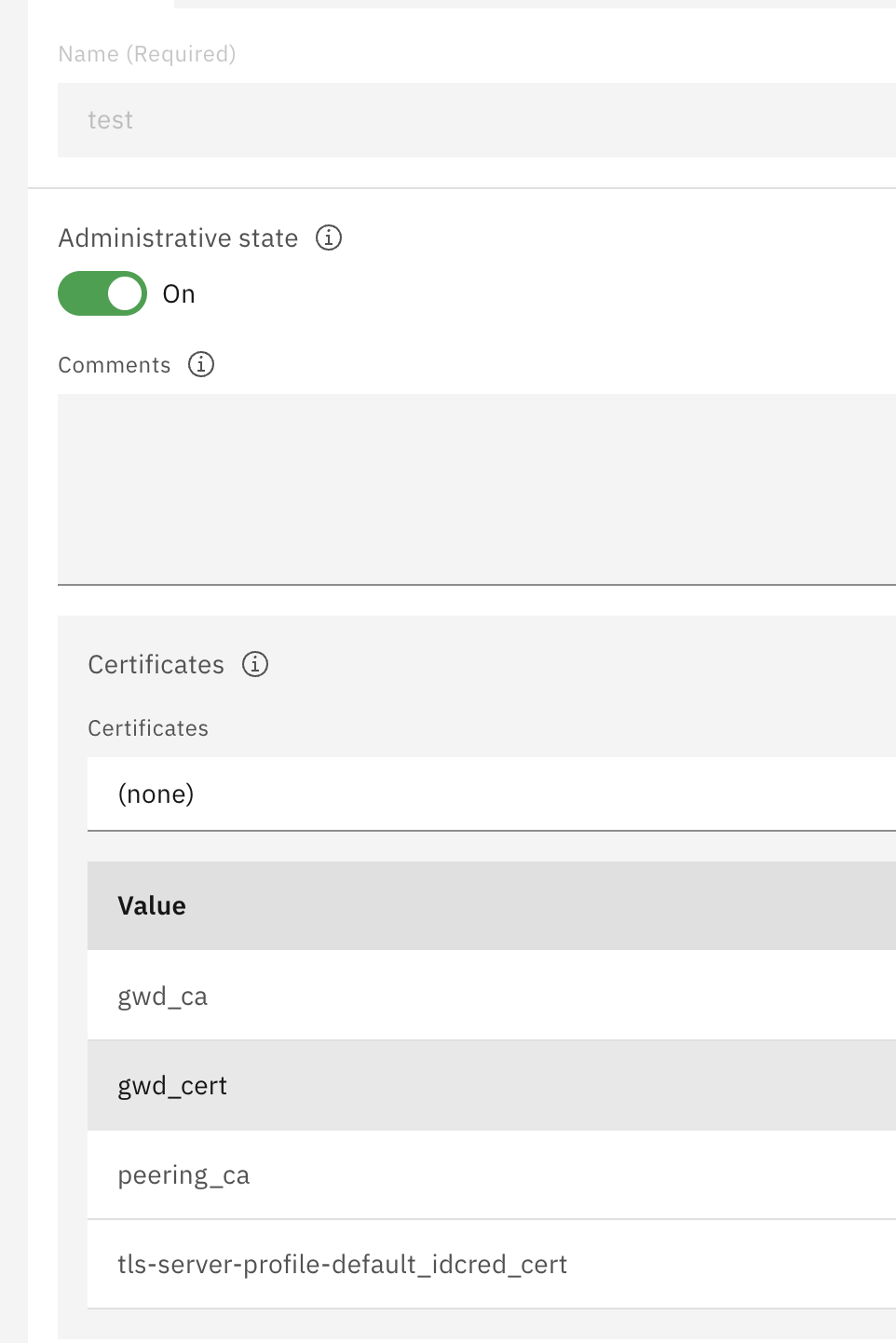 Figure 7: Verified new certificate order in the WebGUI
Expected new order:
tls-server-profile-default_idcred_cert
gwd_ca
gwd_cert
peering_ca
5. Important Considerations
5.1. Timing and Impact
- Always perform this operation during a maintenance window
- Domain restart will cause a brief service interruption
- Active connections will be terminated during the restart
- Plan for connection re-establishment after restart
5.2. Best Practices
- Document the original certificate order before making changes
- Test the new certificate order in a non-production environment first
- Verify SSL/TLS connections work correctly after reordering
- Keep a backup of the configuration file before editing
5.3. Troubleshooting
If certificates don’t appear in the expected order after restart:
- Verify the configuration file was saved correctly
- Check for syntax errors in the valcred configuration block
- Review domain logs for any configuration errors during restart
- Ensure the domain restart completed successfully
6. Alternative: Using CLI
You can also perform this operation using the DataPower CLI:
# Enter configuration mode
configure terminal

# Enter the domain
domain [domain-name]

# Modify the valcred
valcred "test"
  # Remove all certificates first
  no certificate gwd_ca
  no certificate gwd_cert
  no certificate peering_ca
  no certificate tls-server-profile-default_idcred_cert

  # Add them back in the desired order
  certificate tls-server-profile-default_idcred_cert
  certificate gwd_ca
  certificate gwd_cert
  certificate peering_ca
exit

# Save configuration
write memory

# Restart domain
restart domain [domain-name]
7. Conclusion
Reordering certificates in a DataPower valcred is a straightforward process that involves editing the domain configuration file and restarting the domain. While the process is simple, it’s important to plan for the service interruption and verify the changes take effect correctly.
Remember to always:
- Perform changes during maintenance windows
- Document your changes
- Test in non-production environments first
- Verify SSL/TLS functionality after changes
8. Related Resources
Useful Links: