

Understanding Backend Attributes in Analytics Events: Essential Fields for Debugging
•
by
Chris Phillips


Correction - 23/02/2026
When troubleshooting API issues in IBM API Connect, understanding what happened between your gateway and backend services is crucial. API Connect provides detailed backend logging capabilities through its API Event Record fields.
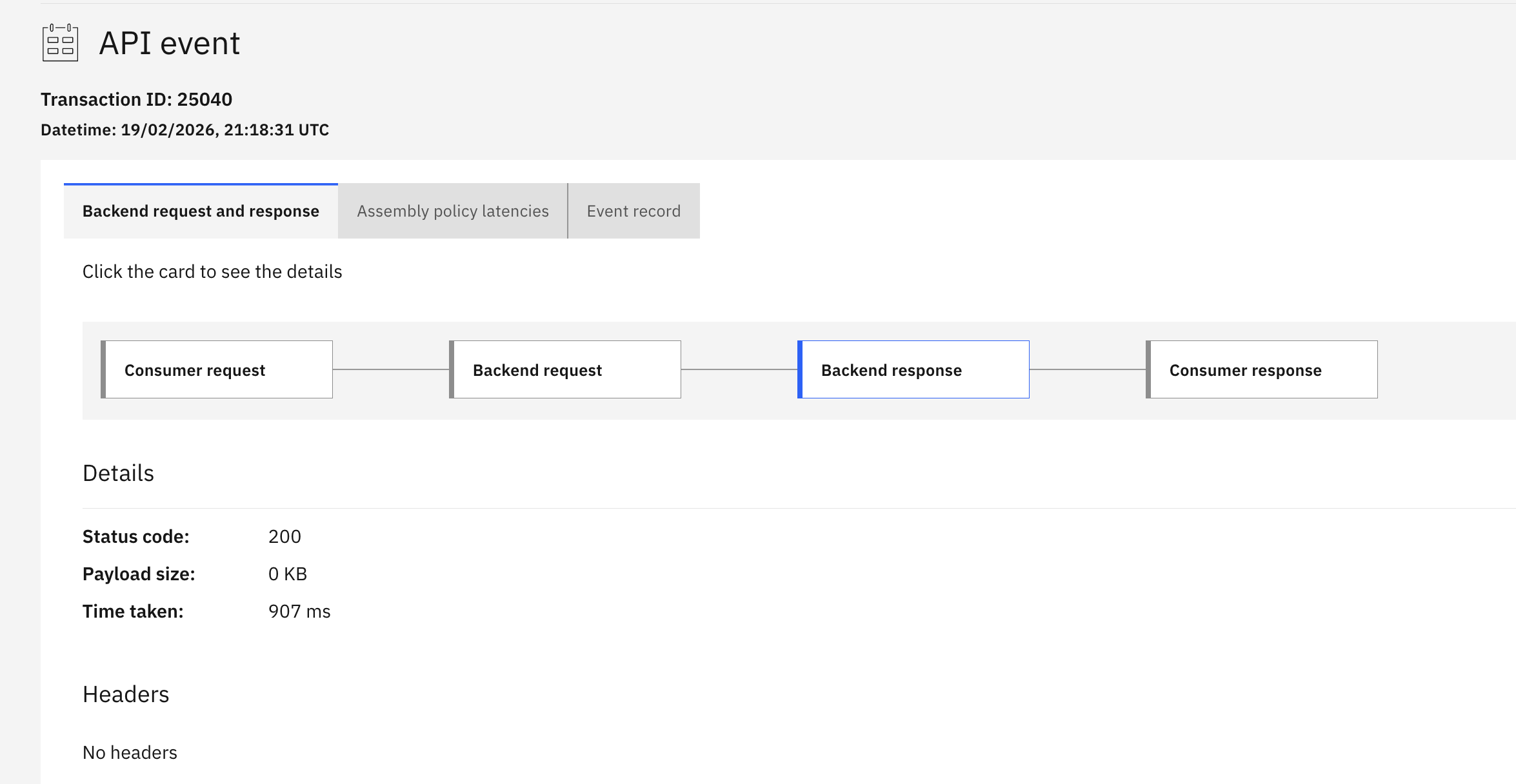
Understanding Backend Logging Fields
API Connect’s API Event Record Field Reference documents all available fields for analytics and logging. The backend-specific fields provide deep visibility into the communication between your API Gateway and downstream services.
Enabling Backend Logging Fields
The backend logging fields are enabled if the corresponding fields are enabled in the Activity Logging configuration. For example, if you have enabled payload logging in the Activity Logging settings, then the backend payload logging fields will be available in the analytics events.
Visualizing Backend Performance
API Connect’s Analytics interface provides a detailed view of assembly policy latencies, showing how time is distributed across different policies in your API flow. This helps identify which policies contribute most to overall response time.
1. backend_method
Field Name: backend_method
What It Contains: The HTTP method used when calling the backend service (GET, POST, PUT, DELETE, PATCH, etc.).
Why It Matters:
- Verifies that the correct HTTP method is being used for backend calls
- Helps identify method transformation issues in your API policies
Example Use Case: If your API accepts a POST request but the backend expects a GET, this field will show the actual method sent to the backend, helping you identify policy configuration issues.
Example Value:
{
  "backend_method": "POST"
}
2. backend_request_body
Field Name: backend_request_body
What It Contains: The complete request payload sent from the API Gateway to the backend service.
Why It Matters:
- Shows exactly what data was sent to your backend
- Reveals payload transformation results from policies
- Critical for debugging data mapping issues
- Helps identify payload size problems
Requirement:
- Requires Payload logging to be enabled
Security Consideration: This field can contain sensitive data. Ensure your analytics storage has appropriate access controls and consider data masking policies for sensitive fields.
Example Use Case:
When a backend returns an error about missing or malformed data, examining backend_request_body shows you exactly what the gateway sent, helping you identify if the issue is in your transformation logic or the original client request.
Example Value:
{
  "backend_request_body": "{\"customerId\":\"12345\",\"orderAmount\":99.99,\"currency\":\"USD\"}"
}
Storage Impact: High - Can significantly increase analytics storage requirements for APIs with large payloads.
3. backend_request_headers
Field Name: backend_request_headers
What It Contains: All HTTP headers sent from the API Gateway to the backend service, including both original headers and those added by policies.
Why It Matters:
- Shows custom headers added by policies
- Helps debug content-type and encoding issues
- Essential for troubleshooting backend authentication failures
Requirement:
- Requires heading logging to be enabled
Common Headers to Check:
Authorization- Authentication tokensContent-Type- Request payload formatAccept- Expected response formatX-IBM-Client-Id- API Connect client identification- Custom headers added by your policies
Example Use Case:
When a backend service rejects requests with authentication errors, backend_request_headers shows whether the Authorization header was correctly set and what value was sent.
Example Value:
{
  "backend_request_headers": [
    {
      "Content-Type": "application/json"
    },
    {
      "Authorization": "Bearer eyJhbGciOiJIUzI1NiIs..."
    },
    {
      "X-IBM-Client-Id": "abc123"
    },
    {
      "Accept": "application/json"
    },
    {
      "User-Agent": "IBM-APIConnect/10.0.8"
    }
  ]
}
4. backend_response_body
Field Name: backend_response_body
What It Contains: The complete response payload received from the backend service before any gateway transformations.
Why It Matters:
- Shows the raw backend response before policy transformations
- Essential for debugging response mapping issues
- Helps identify backend errors vs. gateway errors
- Critical for validating backend behavior
Requirement:
- Requires payload logging to be enabled
Example Use Case:
When clients report receiving incorrect data, comparing backend_response_body with the final response shows whether the issue originated from the backend or was introduced during gateway processing.
Example Value:
{
  "backend_response_body": "{\"orderId\":\"ORD-789\",\"status\":\"confirmed\",\"timestamp\":\"2026-02-18T16:30:00Z\"}"
}
Debugging Tip:
If backend_response_body is empty but you expected data, check:
- Backend service logs for errors
- Network connectivity issues
- Timeout configurations
5. backend_response_headers
Field Name: backend_response_headers
What It Contains: All HTTP headers returned by the backend service to the API Gateway.
Why It Matters:
- Shows backend-set cookies and session information
- Reveals caching directives from the backend
- Helps debug content-type mismatches
Requirement:
- Requires header logging to be enabled
Common Headers to Check:
Content-Type- Response payload formatCache-Control- Caching directivesSet-Cookie- Session managementX-RateLimit-*- Backend rate limiting information- Custom headers from your backend
Example Use Case:
When investigating caching behavior, backend_response_headers shows the actual Cache-Control directives from your backend, helping you understand if caching issues originate from the backend or gateway policies.
Example Value:
{
  "backend_response_headers": [
    {
      "Content-Type": "application/json"
    },
    {
      "Cache-Control": "no-cache, no-store, must-revalidate"
    },
    {
      "X-RateLimit-Remaining": "95"
    },
    {
      "X-Response-Time": "45ms"
    }
  ]
}
6. backend_status_code
Field Name: backend_status_code
What It Contains: The HTTP status code returned by the backend service.
Why It Matters:
- Distinguishes backend errors from gateway errors
- Helps identify backend availability issues
Key Distinctions:
- 2xx codes: Backend processed request successfully
- 4xx codes: Backend rejected request (client error)
- 5xx codes: Backend service error
- No value: Gateway couldn’t reach backend (timeout, connection refused, etc.)
Example Use Case:
When investigating API failures, comparing backend_status_code with the final response status code shows whether errors originated from the backend or were generated by gateway policies.
Example Values:
{
  "backend_status_code": "200"  // Success
}

{
  "backend_status_code": "404"  // Backend resource not found
}

{
  "backend_status_code": "503"  // Backend service unavailable
}
Monitoring Tip: Track the ratio of backend 5xx errors to total requests to identify backend reliability issues separate from gateway problems.
7. backend_time_to_serve_request
Field Name: backend_time_to_serve_request
What It Contains: The time (in milliseconds) taken by the backend service to process and respond to the request, measured from when the gateway sent the request until it received the complete response.
Why It Matters:
- Identifies slow backend services
- Helps distinguish backend latency from gateway processing time
Performance Analysis: Compare this field with total API response time to understand where latency occurs:
- High
backend_time_to_serve_request= Backend performance issue - Low backend time but high total time = Gateway processing overhead
Example Use Case:
When users report slow API responses, backend_time_to_serve_request immediately shows whether the backend is the bottleneck or if the delay is in gateway processing.
Example Value:
{
  "backend_time_to_serve_request": "1250"  // 1.25 seconds
}
8. backend_url
Field Name: backend_url
What It Contains: The complete URL (including protocol, host, port, path, and query parameters) that the API Gateway used to call the backend service.
Why It Matters:
- Verifies correct backend routing
- Shows dynamic URL construction results
- Essential for debugging load balancing issues
- Helps identify incorrect service endpoints
Example Use Case:
When APIs fail to reach the correct backend service, backend_url shows the exact URL the gateway attempted to call, helping you identify routing policy errors or incorrect service configurations.
Example Values:
{
  "backend_url": "https://api.backend.example.com:8443/v1/orders/12345"
}

{
  "backend_url": "http://internal-service.cluster.local/customers?id=789&include=orders"
}
By understanding and properly utilizing these backend logging fields, you can dramatically reduce troubleshooting time and gain deep insights into your API ecosystem’s behavior.